
Dell XPS L502X Disassembly – Overheating Issues
Dell XPS L502X Teardown – Fixing Overheating with New Thermal Paste, Fan & RAM Upgrade
🔧 Laptop Repair
⏱ 4 min read
I finally got around to a project I’d been putting aside for way too long: giving my own Dell XPS 15 L502X some much-needed love.
I bought this laptop new in 2011, and it’s still one of the toughest machines I’ve ever owned. It spent years as my DJ laptop — clubs, outdoor and indoor events, parties — on top of being my everyday computer. These days I mostly use it for music and browsing, but it’s still powerful enough for much more.
The problem: overheating & a fan that never stopped
Over time, I noticed the CPU fan was always running high — even when the laptop was just sitting idle. One of the USB ports on the back was also acting up. Time to open it up. Here’s what I planned:
- ✓ USB 3.0 I/O board – replacement
- ✓ CPU fan – replacement
- ✓ CPU & GPU heatsink – cleaning and fresh thermal paste
- ✓ Memory upgrade – from 8GB to 16GB, since it was already open
What I found inside 🙀
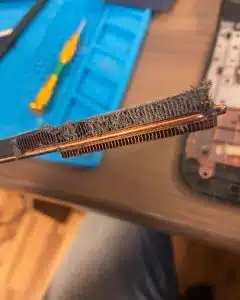
Once it was apart, the dust on the heatsink and fan was no surprise — that’s expected after years of use. What did surprise me was the thermal paste.
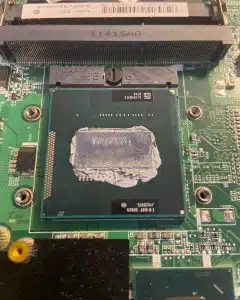
Almost all of the original Dell thermal paste had dried out and melted off the CPU. Without good contact between the chip and the heatsink, heat had nowhere to go — which explained the high temperatures and the fan running full blast all the time. 🌡
The repair, step by step
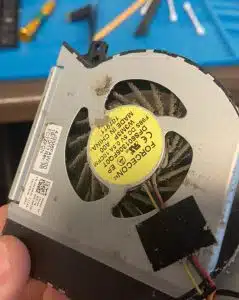
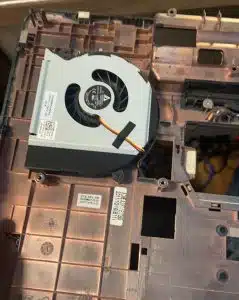
1. Replace the CPU fan
The original fan was very dirty, and I wanted to rule out a worn or defective fan, so it got replaced.
2. Replace the USB I/O board
Swapped in a new USB 3.0 I/O board to fix the faulty rear port.
3. Remove and clean the CPU/GPU heatsink
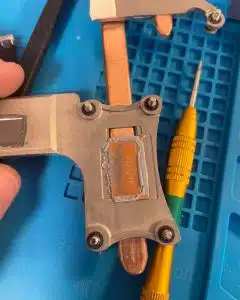
4. Clean off the old paste and apply new Arctic MX-4
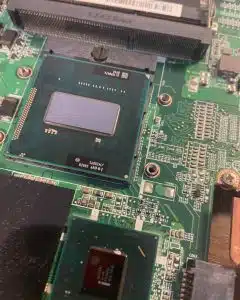
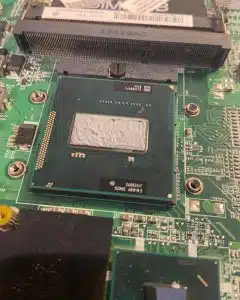
5. Upgrade the RAM and reassemble
Installed the extra memory to bring it up to 16GB, put everything back together, and powered it on — no more fan noise at boot. Success! 🎊
The results 🚀

- ✓ 15–20°C cooler – CPU temperatures at idle dropped dramatically
- ✓ Quiet again – the fan no longer runs full speed for no reason
- ✓ All ports working – the new USB I/O board fixed the faulty port
- ✓ Noticeably faster – the 16GB memory upgrade gave a real speed boost
💡 Does your laptop need a thermal paste job?
Thermal paste dries out over the years on every laptop — PC or MacBook. Watch for these signs:
- ✓ Fan running loud, even when you’re barely doing anything
- ✓ Laptop hot to the touch, especially near the keyboard or vents
- ✓ Slowdowns or random shutdowns under load
- ✓ It’s been 4–5 years or more without a cleaning
Why choose JS Information?
- ✓ Cleaning & thermal paste service – for PC laptops and MacBooks
- ✓ Fan, port & memory upgrades – done in the same visit
- ✓ 16+ years in electronics repair – serving Moncton since 2010
- ✓ Honest, upfront pricing – you’ll know the cost before we start
✓ Laptop fan always running full speed?
You might need a cleaning and fresh thermal paste. Let’s cool it down.
Serving the Greater Moncton Area
Located at 2 Inglewood Street in Moncton, NB. We provide laptop cleaning, thermal paste replacement, and upgrades to Moncton, Dieppe, Riverview, and surrounding communities.
#ThermalPaste
#LaptopOverheating
#RAMUpgrade
#LaptopRepair
#MonctonNB
#JSInformation
